Accessory maker Satechi released its first Thunderbolt 5 dock earlier this year, debuting the $400 Thunderbolt 5 CubeDock. Satechi’s dock combines Thunderbolt 5 connectivity with the traditional ports you expect from a dock, plus extra SSD storage thanks to an added SSD enclosure.
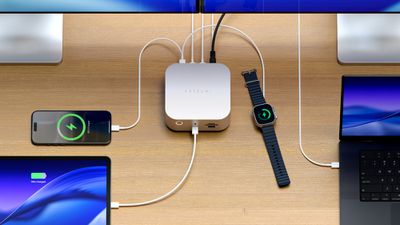
Satechi likes to make things shaped like the Mac mini, and the CubeDock gives Mac mini vibes. It’s five inches by five inches, and two inches thick, identical to the Mac mini. It’s silver, so it matches Apple hardware that comes in that shade, and it would pair well with a Mac mini.
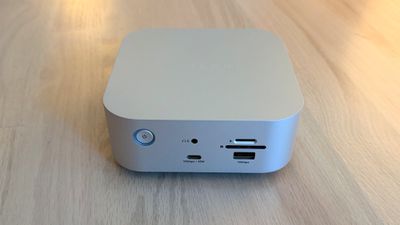
The front of the dock has a 30W/10Gbps USB-C port, a 7.5W/10Gbps USB-A port, a 3.5mm audio jack, and SD and microSD card slots. I like the positioning of the card readers because they’re easy to get to. I don’t use wired headphones, but if I did, I’d also appreciate having that front audio jack. 30W charging for the front USB-C port is useful too, because 30W is enough to fast charge an iPhone and charge an iPad or MacBook Air.
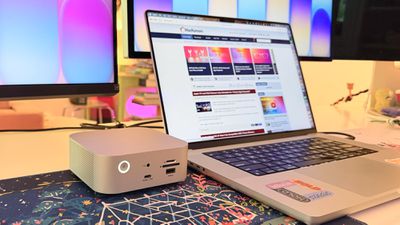
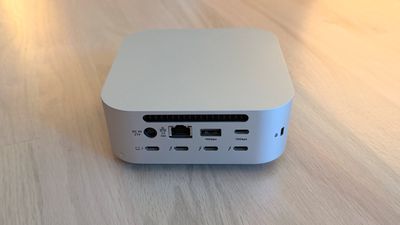
The back has a 2.5Gb Ethernet port, an 80/120Gbps Thunderbolt 5 host port to connect to a Mac, three additional 80Gbps Thunderbolt 5 ports (with 15W each for accessories), a 10Gbps 4.5W USB-A port, a 10Gbps 7.5W USB-C port, and a DC port for connecting the power supply. The CubeDock provides 140W for a MacBook,can charge the 16-inch MacBook Pro at the fastest speed.
At the bottom of the CubeDock, there’s a panel that can be popped out to add in up to an 8TB NVMe SSD. It supports 2230, 2242, 2260, and 2280 sizes with transfer speeds of up to 6000MB/s, depending on the SSD used. The CubeDock has an SSD enclosure, but it does not come with SSD storage. You need to buy an internal SSD separately if you want to use the enclosure, and SSDs aren’t cheap right now.
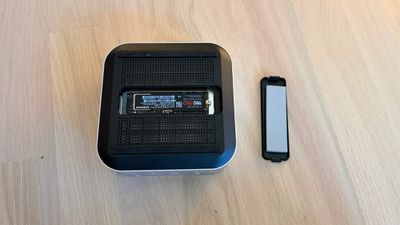
I installed a 2TB SSD in the slot at the bottom of the CubeDock. There’s a plastic cover that comes off, and the SSD plugs in underneath. It’s held in place with a screw, but the installation process was a little annoying because the screw needs to be positioned before the SSD is inserted. Satechi includes a thermal pad, which I added before closing it back up. My Mac recognized the SSD in the enclosure just as it would any other SSD I plugged in.
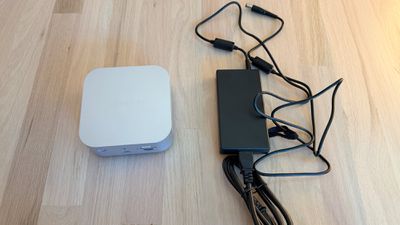
There is a fan in the CubeDock that circulates air, along with vent holes at the sides. It has an LED power button on the front, and it charges with an included 180W power supply. The power supply is not built into the dock and is instead an external brick. Satechi also includes a Thunderbolt 5 cable to connect the dock to a Mac.
I don’t generally mind the sound of fans, but the CubeDock’s fans have a subtle electronic whine that bothers me. I know some people can’t hear that high-pitched electronic noise, but I can, and in a quiet room, it’s the audio equivalent of having a pebble stuck in my shoe. I can’t hear the sound when the TV is on, when music is playing, or when my AC is running. Anker’s Thunderbolt 5 Dock has fans and had a similar noise, but fanless models like the CalDigit TS5 Plus are silent.
With the fans, the CubeDock doesn’t get blazingly hot, but it is warm to the touch. The temperature is closer to a hand warmer on a cold day than scorching coffee. I didn’t notice a temperature difference testing with the SSD installed and without it.
The CubeDock supports up to three 8K displays at 60Hz, but Satechi says 8K is limited to Windows machines. The M5 Pro and M5 Max chips do support 8K displays, but I don’t have one to test with.
What I do have on hand is a 5K Studio Display and a 32-inch 4K 120Hz OLED display, both of which the CubeDock can handle with no problem. I plugged in two iPhones to charge, put in an SD card, and connected two SSDs, and transferred large files. I had no issues with the CubeDock under this stress test, and everything also worked during day-to-day testing.
The benefit of a dock like the CubeDock is being able to plug in multiple displays, peripherals, and accessories while only having one cable connected to a Mac. I can tuck the CubeDock under a display, route the cables out the back, and keep my desk neater with less cable clutter. I felt like the CubeDock had a good number of ports for everyday use, and I wasn’t missing anything. It has fewer USB-C and USB-A ports than some other docks that it competes with, but I have few enough USB-A devices that even two USB-A ports felt like one too many.
The Apple silicon chip you have determines the number of displays that the CubeDock can drive over a single Thunderbolt port. M5 Pro and M5 Max Macs can drive three displays at 6K/60Hz with Satechi’s dock. M4 Max, M4 Pro and earlier Pro/Max chips support up to two external displays with the CubeDock (up to 6K/60Hz).
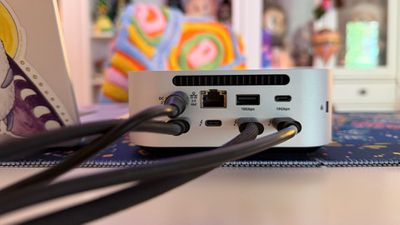
Pro/Max Macs can generally support more than two external displays, but you need to use more than one Thunderbolt port. I have two displays connected to an M1 Max with the CubeDock, and a third display plugged into a different Thunderbolt port.
Base M1 and M2 Macs support a single external display over Thunderbolt, but base M4 and M5 Macs can drive two. The M3 is complicated because an M3 MacBook Air can support two displays, but only in clamshell mode. It’s best to check Satechi’s website for compatibility info to make sure you can connect what you want to connect.
Bottom Line
Satechi’s dock lets you connect multiple displays, peripherals, and accessories to your Mac with one cable, offering easy plug-and-play functionality. The addition of an SSD enclosure helps differentiate the CubeDock from competing products. It puts the ports most people need right up front, and hides the rest away for desk organization.
The CubeDock is one of the better looking options on the market because of how well it matches Apple’s aesthetic, and it doesn’t run as hot as docks without a fan included. Unfortunately, the fan noise can be distracting for people who are sensitive to certain sounds.
With two generations of Thunderbolt 5 Macs now available, there’s more reason to choose a Thunderbolt 5 over a Thunderbolt 4 dock. Compared to Thunderbolt 4, Thunderbolt 5 offers double the bandwidth (80Gbps instead of 40Gbps) and up to 120Gbps for display-heavy setups.
If you have a newer Mac that supports Thunderbolt 5 and need extra ports, a Thunderbolt 5 dock makes the most sense. If you have an older Mac and are trying to decide between Thunderbolt 4 and Thunderbolt 5, Thunderbolt 5 is the better choice if you’re going to upgrade anytime in the next couple of years.
How to Buy
The Satechi Thunderbolt 5 CubeDock with SSD Enclosure can be purchased from the Satechi website or from Amazon.com for $399.99.
Note: Satechi provided MacRumors with a CubeDock for the purpose of this review. No other compensation was received. MacRumors is an affiliate partner with Satechi and may earn commissions on purchases made through links in this article.