BenQ is expanding its display lineup with the MA320UG, a 32-inch 4K 120Hz display designed for Mac users. BenQ’s new $830 display connects to a Mac using Thunderbolt 4, and provides up to 96W charging.
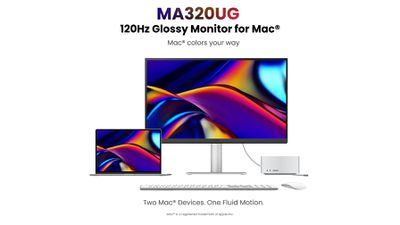
The MA320UG has an appealing design with a silver aluminum stand and a round height-adjustment arm that has up to 150mm of travel. It can be used in landscape or portrait mode by rotating, and the bottom of the base has a rubber pad where a Mac can sit. It has tilt and swivel functionality for getting an ideal viewing angle. There are slim bezels at the sides and top of the display, and a thicker bezel at the bottom.
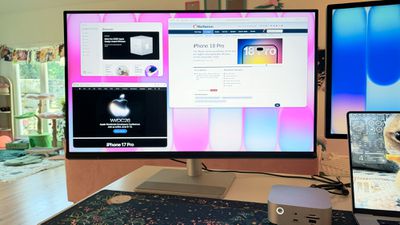
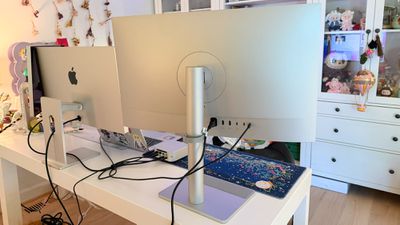
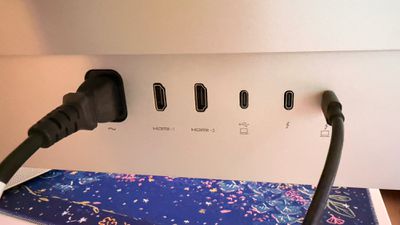
There’s an upstream Thunderbolt port, a downstream Thunderbolt port to daisy chain a second display, two USB-C ports (one with 35W charging), two USB-A ports, and two HDMI ports at the back of the display. An always-on charging mode lets devices charge when the display is turned off, and there are two speakers included. Speakers in displays are generally not great, and that’s the case here. The sound is fine, but if you want good sound, use your Mac’s speakers or get external speakers. The 96W charging was enough to keep my MacBook Pro topped up, even though the MacBook Pro can draw up to 140W.
I tested the MA320UG with a 16-inch MacBook Pro, and it’s always tricky evaluating a 4K display next to a MacBook Pro display, because it’s never going to look as crisp. A 4K 32-inch display is about 138 pixels per inch (PPI), while my MacBook Pro display is 254 PPI.
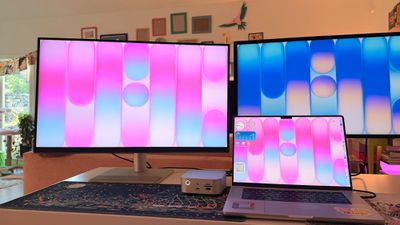
With BenQ’s display software, the MA320UG can be set to 2560×1440, which is the default, 3840×2160, or a lower resolution. The lower the resolution, the larger the on-screen elements. I find 3840×2160 to be too small, and 2560×1440 to be too big, so there’s no real sweet spot. The software doesn’t allow for it, but I used my Mac’s settings for a 3008×1692 resolution for a more consistent UI size with my MacBook Pro.
Text on the MA320UG is slightly fuzzier than on the MacBook Pro’s display at the three higher resolutions I tested, but it’s still entirely readable with HiDPI for Retina scaling. I don’t notice the difference when I’m absorbed in work, but if I sit and stare at both displays, I can see the softness of the text on BenQ’s display. I know some people are bothered by the disparity, but it’s not something I think about unless I concentrate on it.
HDR video in BenQ’s HDR mode is where I can see the biggest difference between the MA320UG and the MacBook Pro. The MacBook Pro’s display is much brighter and the contrast ratio is higher, so it wins out when it comes to color variation and detail. Everything has more depth on the MacBook Pro display.
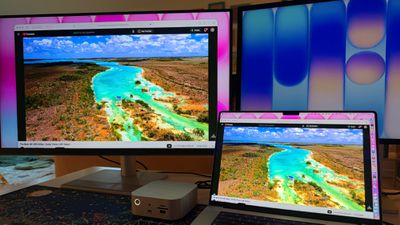
If I’m not sitting at my desk and looking at the same HDR video on both displays at the same time, the MA320UG is totally fine, and I don’t know what I’m missing. If I look at the MA320UG alone, it looks great. The MA320UG has a 120Hz refresh rate, which does match the ProMotion of the MacBook Pro for smooth scrolling, so there’s no jarring transition. While the refresh rate is up to 120Hz, it tops out at 60Hz when using HiDPI and HDR at the same time due to bandwidth limitations.
You can have 120Hz HiDPI, 120Hz HDR, or HiDPI HDR enabled, but not all three, and if that sounds confusing, it is. The limitation is because of the bandwidth needed for 4K, HDR, 120Hz, and Retina scaling all at once, and it’s true for other 4K HDR 120Hz displays too.
Mac settings and BenQ’s software aren’t intuitive when it comes to using the different modes. The app doesn’t allow refresh rates to be manually adjusted, and it’s not clear why HDR can’t be activated when in HiDPI mode and at 120Hz. In the native display settings, HDR doesn’t even show up as an option. I have to use the Mac settings to drop to 60Hz when using HiDPI, then the HDR option appears.
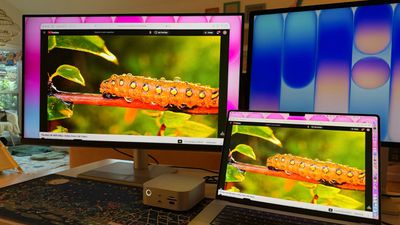
I don’t know that anyone is going to want to use 120Hz HDR without HiDPI in a scaled mode because it looks bad, so HDR mode effectively means running at 60Hz unless you’re at the native 4K resolution. At 4K, you’re not using HiDPI, so 120Hz HDR works fine. You can set up modes on the BenQ display to switch these parameters quickly when you want to watch HDR content.
The MA320UG uses an IPS panel with what BenQ calls a “Nano Gloss” coating. It has 450 nits brightness, a 2000:1 contrast ratio, and DisplayHDR 400. It does not have the brightness level or the contrast ratio for the bright colors and deep blacks that make HDR content look incredible on a Retina display, but it’s not terrible. Content that’s bright makes the entire display brighter, drowning out dark colors and cutting some detail. This wouldn’t be my first choice for HDR content, but it is an option.
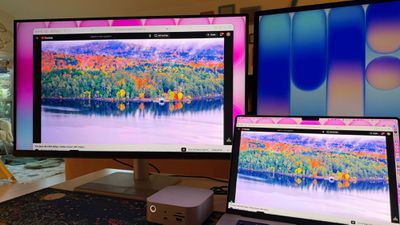
“Nano Gloss” is indeed glossy, and it looks fairly similar to the coating on my MacBook Pro and Studio Display. It’s glossier than other 4K displays I’ve used, which are typically more matte. It has reflectivity that’s similar to a MacBook Pro’s display, so it’s maybe not the best monitor if you have a bunch of bright lights behind you, or light from a bright window.
BenQ says the MA320UG covers 98 percent of the P3 wide color gamut, with a color syncing feature that matches the color of the display to the Mac’s display. I thought the colors were close to identical on the default setting when comparing the same image on the MacBook’s screen and the BenQ display. I don’t have a colorimeter, but to the naked eye it was close. There are options for tweaking red, blue, and green to get a better match if needed. The Mac color matching feature does not seem to work when the display is in HDR mode because HDR settings override it.
The display supports setting different color profiles like P3, sRGB, Cinema, Game, or ePaper. Cinema cranks up contrast while lowering brightness, while Game increases brightness and sharpness. ePaper is a black and white mode, which is interesting if you want a quick access grayscale mode for reading. You can also set a custom user mode and adjust gamma, color temperature, contrast, sharpness, hue, and saturation.
Display Pilot 2 is BenQ’s display software that adds multiple “Mac” features to the MA320UG. I have mixed feelings about the software. It’s useful and feature-rich, but wanted me to sign in with an Apple or Google account when I first installed it. My Apple Account passkey would not work, but I was able to use the software in guest mode. Signing in enables auto backup of personal settings to a Cloud server and allows display settings to sync across devices, but I’m not sure most people need that. It also opted me in to sharing analytics, diagnostics, and usage information with BenQ automatically (an opt out toggle is available in settings).
You need the software to get the full feature set from the MA320UG, like the MacBook Pro color syncing. It also enables brightness control from your Mac’s keyboard, which is done through macOS Accessibility permissions. Other display control apps like BetterDisplay do the same thing. In addition to color matching, True Tone, Night Shift, and automatic brightness sync are available too, so the BenQ display’s white balance always mirrors your Mac’s white balance. The display has a sensor that can be used to detect ambient light and keep brightness levels matched between the display and the connected Mac, but it made both displays inappropriately bright in my office. The MacBook Pro’s ambient light sensor did a better job, and that’s also an option for maintaining the same brightness levels.
It is convenient to have a third-party display that behaves in the same way the Studio Display does, because you don’t need to dig into menus for things like adjusting brightness. I think the app could use a better interface and improved instructions that outline what each feature does, but I appreciated the unseen features that made Mac settings work.
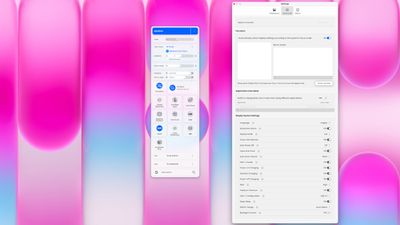
The app has a long list of settings for customization and to meet different workload needs. It syncs color and Focus modes between the MA320UG and the Mac display. You can set display settings to go with a particular Focus mode. If you activate Do Not Disturb, for example, you can set a Low Blue Light mode on the MA320UG, change the color temperature, or choose a particular color mode. Focus options can be used for quickly changing display color modes by activating a Focus on the Mac. Using Focus modes requires enabling Full Disk Access, and that’s not a setting that I enable for any app.
There’s a visual optimizer, blue light reduction feature, partition option for changing how tiled windows are displayed, quick access tools for swapping color modes and changing resolution, toggles for HiDPI and HDR, KVM settings, and a DualView mode where you can use one color profile on half the screen, and a different color profile on the other half. I don’t know why, but there’s also a Google bar that lets you enter a search term in the app that then opens a Google search on the web.
With a 5ms response time, the MA320UG isn’t ideal for competitive gaming, but it does support FreeSync for general gaming. There is a built-in KVM switch for using the same peripherals with two Macs or a Mac and a PC, and it can be used for cross-device copy paste and file transfers. Display Pilot 2 needs to be installed on both machines, with PBP mode activated and KVM set to auto switch.
Display Pilot 2 understandably only works with BenQ displays, but that’s frustrating if you want to use it with other third-party displays. I have a 4K OLED display for my PC that I sometimes use with my Mac, and if I want to adjust brightness or manage it, I have to use BetterDisplay. I can use BetterDisplay with the BenQ display too, but then I lose some of the features like color matching.
Bottom Line
BenQ’s MA320UG is a good 4K display if you’re looking for a Mac-friendly 32-inch display at a price that comes in under Apple’s own display options. The Mac color matching and the software that allows it to work like a native display are useful, and a 120Hz refresh rate is appreciated when used alongside a MacBook Pro.
Many third-party displays are much less Mac-friendly and aren’t able to function like a native display, but the MA320UG matches the Mac’s color and white balance, which gives it an edge over competing 4K displays.
For a 4K LCD display, the MA320UG has a good screen that pairs well with a Mac. It wouldn’t be my first choice for HDR or gaming, but for everyday work, it’s a solid option. A lot of displays are designed for Windows machines and don’t have features that translate to a Mac, so I do appreciate that BenQ created the MA320UG with Mac functionality in mind.
BenQ’s software is decent, as long as you don’t have another third-party display that you want to use along with the MA320UG. Multi-display management is a hassle when you have to use two different display software options.
I wouldn’t choose this over a Studio Display if I had the budget for Apple’s monitor, but it is larger and hundreds of dollars less expensive.
How to Buy
The MA320UG is available from the BenQ website or from Amazon.com for $829.99.
Note: BenQ provided MacRumors with an MA320UG for the purpose of this review. No other compensation was received.